


Design
Video prototype
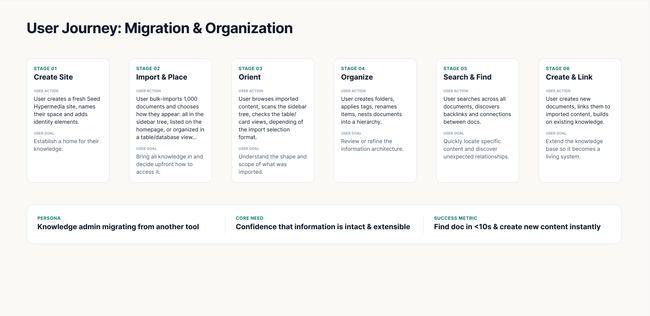
Areas based on what we defined on the workshop
Acceptance criteria
File & Folder Handling
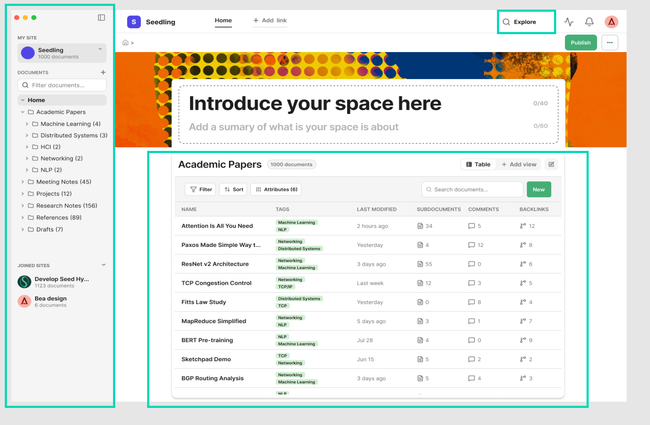
User can import documents into the root level of a space (home)
Imported documents appear in the sidebar document tree under the correct space and folder hierarchy
A dedicated area at the top of the homepage displays the space description and summary to guide members
User can create a new folder after import to organize incoming documents
After importing a big amount of documents the sidebar and table serve different roles:
Sidebar: navigation structure, how content is organized spatially — folders, hierarchy.
Table: data view (a flat query pulling all documents regardless of where they sit, with filterable attributes)
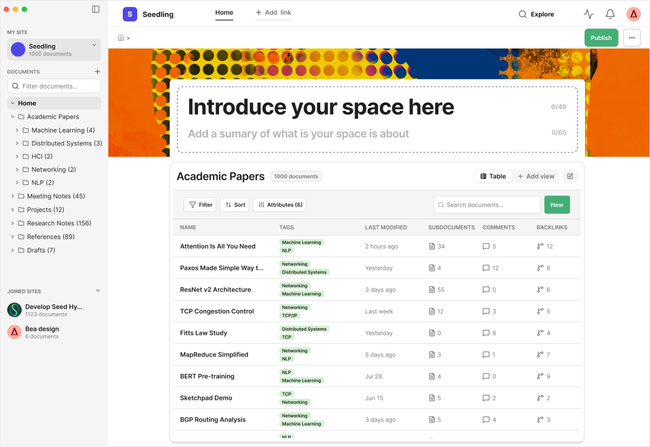
Table & Views Display
Imported documents are assigned a Name that reflects the original file name and appear in the Table view with all visible columns populated
Imported documents are filterable using the Filter option, and sortable using the Sort option
Imported documents appear correctly in all available views: List, Cards, and Graph. There will be Table option by default.
Imported documents are searchable via the search field ('Search documents...')
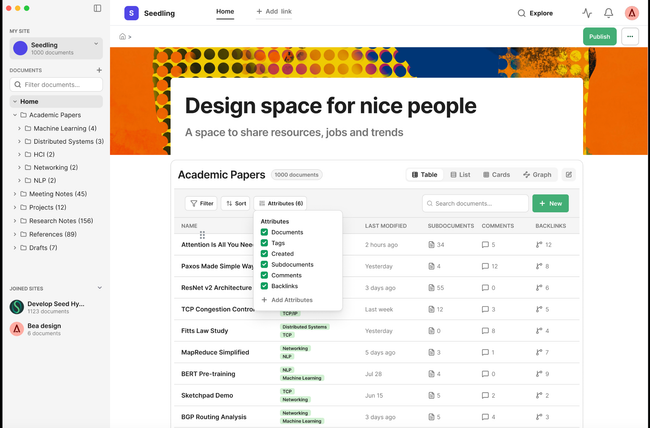
The attributes will be created by the import flow (what agent detected)
The Attributes panel allows toggling visibility of imported document attributes and add new attributes
If user clicks "New" user could create a new document → a new row will be created or import more documents in the table
When clicking one of the documents in any view will navigate to the subdocument
Document Actions within the sidebar
Imported documents are associated with the correct site
User can rename, duplicate or remove any imported document or folder via the context menu by hovering on the document and clicking the 3 dots option that will appear.
User can create subdocuments within an imported document
User can create folders within an imported document
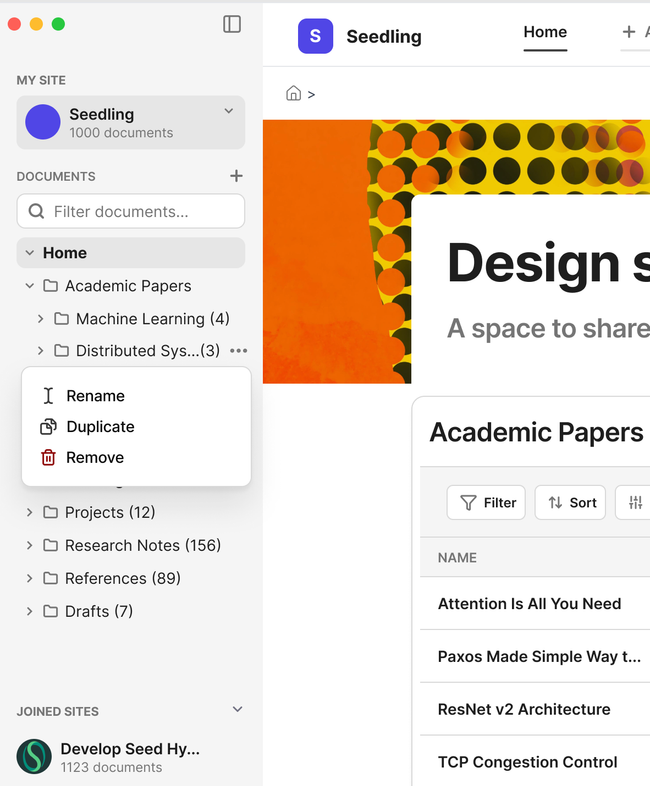
Navigation changes:
Primary navigation: The sidebar serves as the main navigation method, allowing users to browse and access all spaces, folders, and documents.
Secondary navigation (Header): The header bar acts as a supplementary navigation area — it does not replicate the sidebar's structure but instead lets users add custom links for quick access to frequently used pages or external resources.Width space for content must be increased for smooth navigation
Add link option will appear on header on hover state
Inspirations
Apple Notes
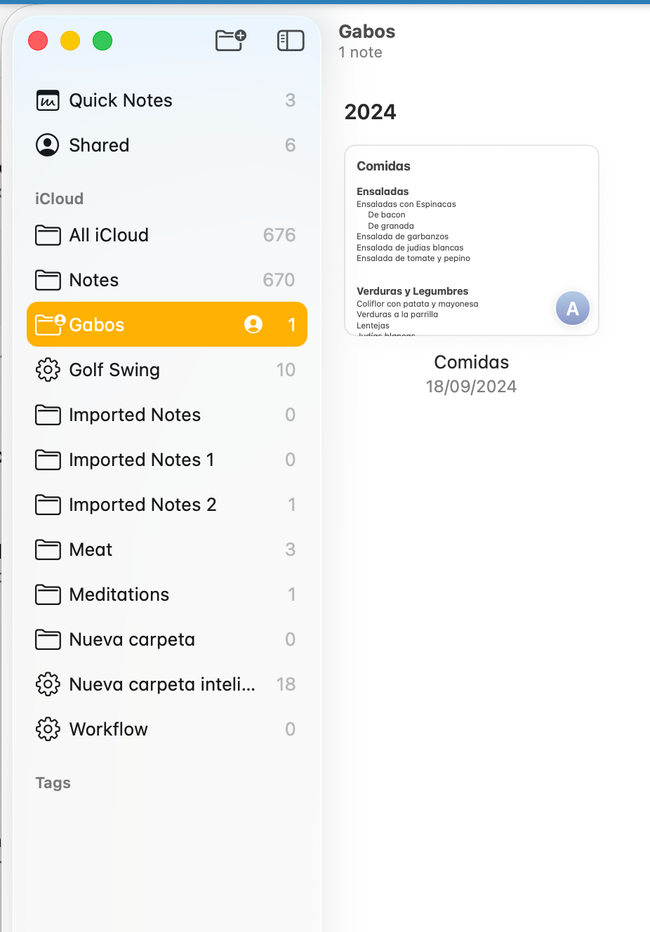
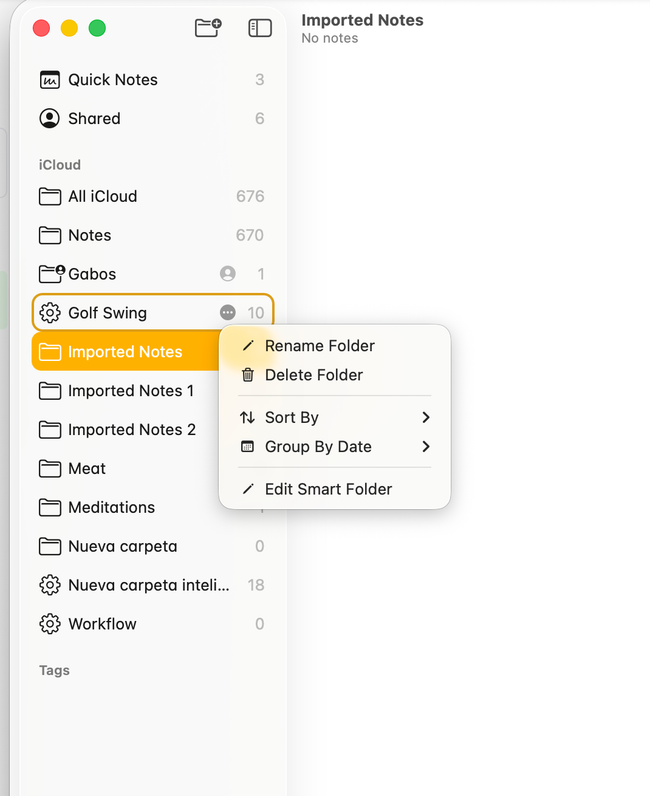
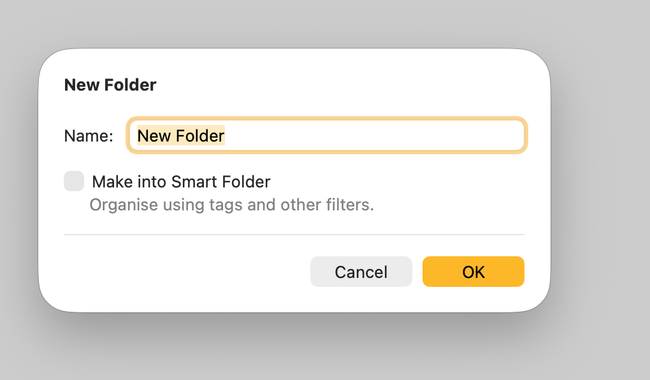
I like something like Create a New Document, with the option of Create a New Smart Document. A Smart Document would be a List/Database document.
Do you like what you are reading? Subscribe to receive updates.
Unsubscribe anytime